

Nothing is more frustrating than when your Wi-Fi drops in the middle of an important Zoom call, a Netflix binge, or an intense online game. Fixing Wi-Fi problems doesn’t have to be complicated — in most cases, you can restore a fast, stable connection with just a few quick changes.
In this in-depth guide, we’ll explore 10 effective fixes for slow or unstable Wi-Fi and give you a home setup checklist to make sure your connection stays strong. Whether you’re a remote worker, gamer, student, or just browsing the web, these tips will help you say goodbye to buffering and hello to smooth streaming.
1. Restart Your Router and Modem
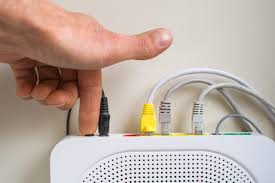
Just like computers and smartphones, routers need an occasional reboot. Restarting helps clear memory leaks, update connections, and refresh your IP address.
How to restart properly:
- Unplug your router and modem from the power outlet.
- Wait at least 30 seconds.
- Plug them back in and wait for the connection to re-establish.
💡 Pro Tip: Schedule a weekly restart using a smart plug so you don’t have to remember.
2. Place Your Router in the Best Location
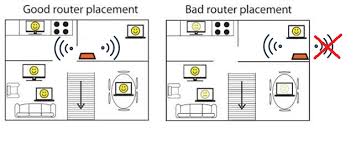
Wi-Fi signal strength is heavily affected by where you put your router. The signal weakens with every wall, floor, or obstacle it has to pass through.
Best placement tips:
- Keep the router in a central location.
- Place it high up (like on a shelf).
- Avoid placing it near microwaves, cordless phones, or thick concrete walls.
For more technical guidance, check this router placement guide from PCMag.
3. Update Your Router’s Firmware
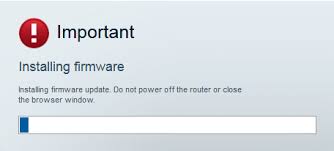
Router manufacturers release firmware updates to improve speed, security, and compatibility.
How to check:
- Log into your router’s admin panel (usually by typing
192.168.1.1in your browser). - Look for a “Firmware” or “Update” section.
- Apply updates if available.
4. Use the 5GHz Band for Faster Speeds
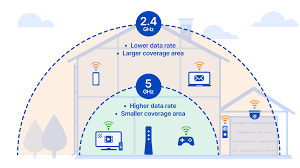
If your router supports dual-band Wi-Fi, you have two frequency options: 2.4GHz and 5GHz.
- 5GHz → Faster speeds, less interference, but shorter range.
- 2.4GHz → Better range, more interference from other networks.
For activities like gaming, HD streaming, or video calls, connect to 5GHz. For smart devices far from the router, use 2.4GHz.
5. Limit Connected Devices
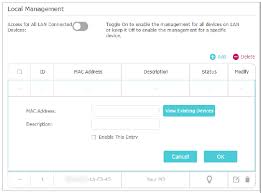
Each connected device consumes part of your bandwidth. If your home has many smart TVs, phones, tablets, laptops, and IoT devices, your Wi-Fi will slow down.
Quick fixes:
- Disconnect unused devices.
- Upgrade your internet plan if you have heavy users in the household.
- Invest in a router that supports MU-MIMO technology for better multi-device performance.
6. Change Your Wi-Fi Channel
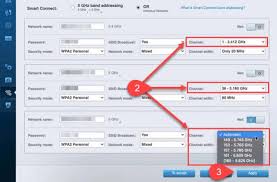
Overlapping Wi-Fi channels cause interference, especially in apartments or neighborhoods with many networks.
You can use free tools like WiFi Analyzer (Windows/Android) or NetSpot (Mac) to see which channels are crowded, then switch to a less-used one in your router settings.
7. Secure Your Network

If your Wi-Fi is not password-protected, others could be using your bandwidth without your knowledge.
Action steps:
- Use WPA3 or WPA2 encryption.
- Create a strong password with letters, numbers, and symbols.
- Avoid using obvious passwords like
12345678orpassword.
8. Use a Wi-Fi Extender or Mesh System
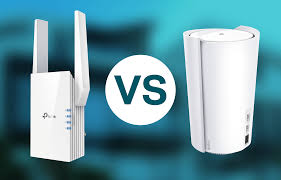
For large homes or offices, your Wi-Fi signal may not cover every area.
- Wi-Fi Extenders → Boost the existing signal to hard-to-reach spots.
- Mesh Wi-Fi Systems → Multiple access points that provide seamless coverage across your home.
Check out this list of best mesh Wi-Fi systems from CNET.
9. Check Background Apps & Updates
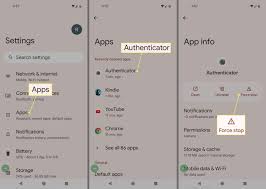
Apps like Netflix, YouTube, or cloud backups running in the background can eat up your bandwidth.
Solution:
- On PCs, check Task Manager (Windows) or Activity Monitor (Mac).
- On smartphones, close unused apps.
- Schedule software updates during off-peak hours.
10. Contact Your Internet Service Provider (ISP)
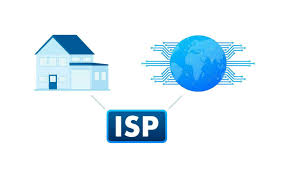
If you’ve tried everything and still have slow internet, the issue might be on your ISP’s end.
What to do:
- Ask if there’s an outage or maintenance in your area.
- Request a line check or a replacement modem/router.
- Consider upgrading to a faster plan.
Home Wi-Fi Setup Checklist
✅ Router placed centrally and elevated
✅ Devices connected to correct frequency band
✅ Firmware updated regularly
✅ Strong network password in place
✅ Minimal interference from other electronics
✅ Extenders or mesh networks for large spaces
Extra Pro Tips for Fixing Wi-Fi Performance
- Use Ethernet cables for stationary devices like desktop PCs or gaming consoles for maximum stability.
- Enable QoS (Quality of Service) in your router to prioritize important devices.
- Reduce interference by keeping your router away from Bluetooth devices, baby monitors, and microwave ovens.
Final Thoughts
Fixing Wi-Fi isn’t just about buying a new router — sometimes small adjustments make the biggest difference. By following these 10 tips and using the checklist, you can enjoy faster speeds, fewer drops, and a smoother online experience.
💬 We’d love to hear from you! Drop a comment below and share your own tips for improving Wi-Fi speed. Also, don’t keep this guide to yourself — share it with friends and family so they can enjoy better internet too!
📲 Connect with Ukamart
🌐 Website: www.ukamart.com
📘 Facebook: facebook.com/ukamart
📸 Instagram: instagram.com/ukamart
🎵 TikTok: tiktok.com/@ukamart
📌 Pinterest: pinterest.com/ukamart
▶ YouTube: youtube.com/@ukamart



Leave a Comment
Your email address will not be published. Required fields are marked *