
A slow PC can turn even the simplest tasks into a frustrating experience. Opening a browser takes ages, switching between apps feels like running through mud, and you spend more time staring at loading circles than actually working.
The good news? You don’t need to be a tech expert to fix this. With just a few adjustments, you can breathe new life into your laptop and make it run smoother, faster, and more efficiently.
Here’s a step-by-step checklist to speed up your laptop without spending a fortune.
1. Restart Your Laptop Regularly
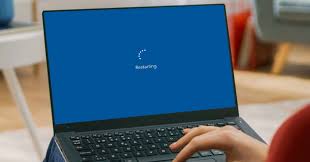
If you keep your laptop running for days or weeks without restarting, background apps and system processes can slow it down. Restarting clears your RAM and refreshes the operating system.
Quick Tip: Restart at least once every 2–3 days to keep performance fresh.
2. Uninstall Unnecessary Programs
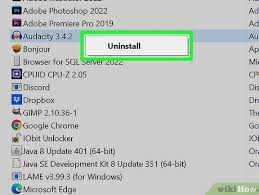
Old, unused software can eat up disk space and background resources.
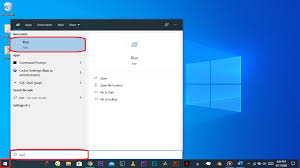
How to do it (Windows):
- Press Windows Key + R → type
appwiz.cpl→ hit Enter. - Scroll through the list and uninstall apps you no longer use.
For Mac, drag unused apps from Applications to the Trash.
3. Disable Startup Programs
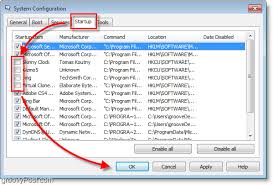
Many apps start automatically when you turn on your PC, slowing boot time.
On Windows:
- Press Ctrl + Shift + Esc → Task Manager → Startup tab.
- Disable programs you don’t need at startup.
On Mac:
- Go to System Preferences → Users & Groups → Login Items and remove unnecessary apps.
4. Clean Up Your Hard Drive
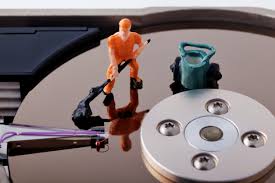
Overloaded storage can slow performance. Delete unnecessary files, downloads, and system junk.
Windows tool: Use Disk Cleanup or Storage Sense.
Mac tool: Use Manage Storage under “About This Mac.”
💡 You can also store files on an external hard drive or cloud storage like Google Drive.
5. Upgrade to an SSD (Solid State Drive)
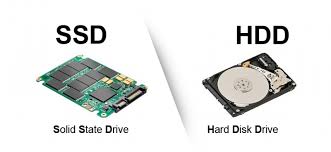
If your laptop still uses an HDD, switching to an SSD can dramatically improve speed. SSDs load files, apps, and boot systems much faster.
You can buy SSDs from Ukamart’s online store and get them installed by a professional.
6. Add More RAM
If your PC slows down when multitasking, it might need more RAM. Upgrading from 4GB to 8GB (or more) can make a huge difference.
7. Update Your Operating System and Drivers
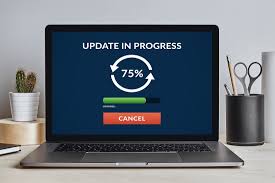
Updates often fix bugs, improve security, and boost performance.
- On Windows: Settings → Update & Security → Windows Update
- On Mac: System Preferences → Software Update
8. Run an Antivirus Scan

Viruses and malware can cause a slow PC. Run a full system scan using Windows Defender or a trusted antivirus program.
For tips on protecting your PC, check Microsoft’s official security guide.
9. Turn Off Visual Effects
Pretty animations can slow older laptops.
- On Windows: System → Advanced System Settings → Performance Settings → Adjust for best performance.
- On Mac: Reduce motion in System Preferences → Accessibility.
10. Clean the Inside of Your Laptop
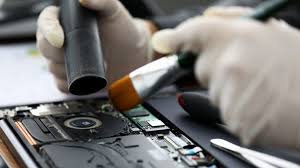
Dust buildup can cause overheating, which slows performance.
Use a can of compressed air to clean vents and fans. If you’re unsure, get a professional cleaning — here’s a good laptop cleaning guide from How-To Geek.
11. Use Lighter Software Alternatives

Instead of heavy programs like Photoshop, try lighter alternatives like GIMP. For browsing, consider Microsoft Edge or Brave for lower RAM usage.
12. Reset Your PC (Last Resort)
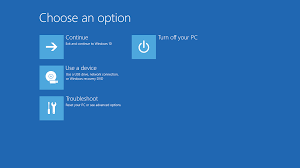
If nothing works, resetting your PC to factory settings can remove all junk and restore speed.
Windows: Settings → Update & Security → Recovery → Reset this PC
Mac: Restart + Command + R → Reinstall macOS
Extra Tips for Long-Term Speed
✅ Keep your laptop cool and avoid overheating.
✅ Don’t overload your desktop with too many icons.
✅ Empty the recycle bin regularly.
✅ Use a surge protector to avoid power-related issues.
When to Consider an Upgrade
If your laptop is more than 6–8 years old, even upgrades might not bring it up to modern speed. In that case, it might be time to invest in a new one. Check out our Laptop Store at Ukamart for affordable, high-performance options.
Final Thoughts
A slow PC doesn’t always mean you need to buy a new laptop. With the right maintenance and upgrades, you can extend its life and enjoy a faster, smoother experience.
💬 We’d love to hear from you!
Have you tried any of these steps? Which worked best for you? Drop a comment below and let us know. And don’t forget to share this guide with friends and family who might be struggling with a slow PC.
📲 Connect with Ukamart
🌐 Website: www.ukamart.com
📘 Facebook: facebook.com/ukamart
📸 Instagram: instagram.com/ukamart
🎵 TikTok: tiktok.com/@ukamart
📌 Pinterest: pinterest.com/ukamart
▶ YouTube: youtube.com/@ukamart



hi
you are so fabulos. how do they spell it again self