
Introduction
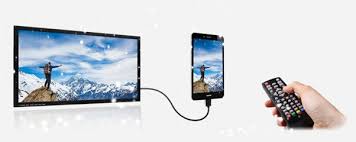
In 2025, knowing how to connect your phone to a TV is more important than ever—whether you’re streaming Netflix, sharing photos, or giving a presentation. This guide reveals 5 powerful and easy ways to do just that, including screen mirroring, HDMI cables, wireless casting, and more. Whether you’re using an Android or iPhone, this step-by-step guide will help you unlock the full potential of your phone-to-TV experience.
1. Use a Smart TV with Screen Mirroring (Wireless Method)
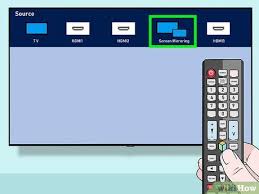
Most Smart TVs come with screen mirroring capabilities. Here’s how to connect:
- Ensure both your phone and Smart TV are connected to the same Wi-Fi.
- Swipe down on your Android and select “Smart View” or “Cast”.
- On iPhones, use AirPlay under Control Center.
- Select your TV from the list and mirror your screen.
✅ Best for: Presentations, photo slideshows, social media viewing.
2. HDMI Cable with Adapter (Wired Method)
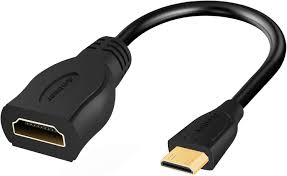
Don’t have a Smart TV? Use an HDMI cable and adapter.
- For Android: Use a USB-C to HDMI adapter.
- For iPhone: Use a Lightning to HDMI adapter.
- Connect the adapter to your phone, plug in the HDMI cable to the TV, and select the HDMI input on your TV.
✅ Best for: HD video streaming, gaming, or when Wi-Fi isn’t reliable.
3. Use Chromecast or Google TV
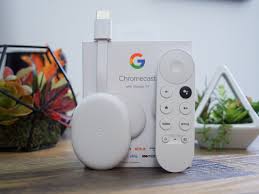
Chromecast is a cheap and powerful solution for both Android and iPhone:
- Plug Chromecast into your TV’s HDMI port.
- Use the Google Home app to set it up.
- Tap the cast icon in supported apps like YouTube, Netflix, or Chrome.
✅ Best for: Streaming apps and quick access to media content.
4. Apple TV or AirPlay for iPhones
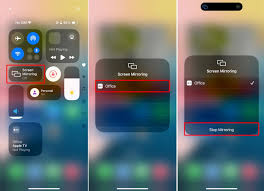
If you’re in the Apple ecosystem:
- Connect your iPhone and Apple TV to the same network.
- Swipe down and tap Screen Mirroring > Apple TV.
- You can mirror the screen or stream directly from apps like Photos or Safari.
✅ Best for: Seamless Apple integration.
5. DLNA Apps or Wireless Dongles
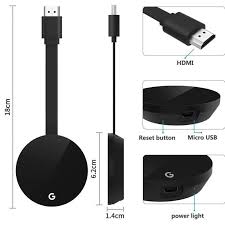
You can also use third-party apps like AllCast, LocalCast, or DLNA-based streaming apps to wirelessly cast videos and music to a DLNA-compatible TV or device.
✅ Best for: Playing saved media files, music, and photos.
Final Thoughts
Knowing how to connect your phone to a TV gives you a world of entertainment and productivity on the big screen. Whether you prefer a wireless solution like Chromecast or AirPlay, or a reliable HDMI cable, the steps above offer something for everyone.
Want a smoother connection next time? Keep your cables handy and apps updated.


Leave a Comment
Your email address will not be published. Required fields are marked *